1 · How Insectal works
A flying insect's sound comes from its wings pushing on the air. On each wingbeat the wing sweeps forward, flips over at the end of the stroke, sweeps back and flips again. As it moves, it pushes on the air with a force that keeps changing. Lift holds the insect up and drag resists the sweep. Both rise and fall through the stroke and change fastest at each flip. That changing push travels out as sound, loudest in the direction the push points.
Most synthesizers start from a stored waveform, such as a saw or a square. Insectal has none. The key you play sets how many times a second the wings beat, which is the pitch. From the wing's build (length, aspect, shape and mass) and its motion (how far it sweeps, its angle on the way up and down, and when and how fast it flips), Insectal works out the force over one beat. The shape of that force sets the tone: a smooth push gives a round hum, and quick, sharp flips give a bright buzz.
Lift and drag point in different directions, so where you listen from changes the sound too. From above you hear mostly the lift, and from the side mostly the drag. ELEVATE and AZIMUTH move your listening position around the insect. The model is simplified so that it can run while you play, but every WINGS and FLIGHT dial changes the sound by changing the force the wing makes.
On each note you hear one insect or a swarm of them, plus the Queen if you switch her on. For each note, the sound runs from the wings through the insect's resonant body, the two filters and AMP OUT. Then it goes through the effects.
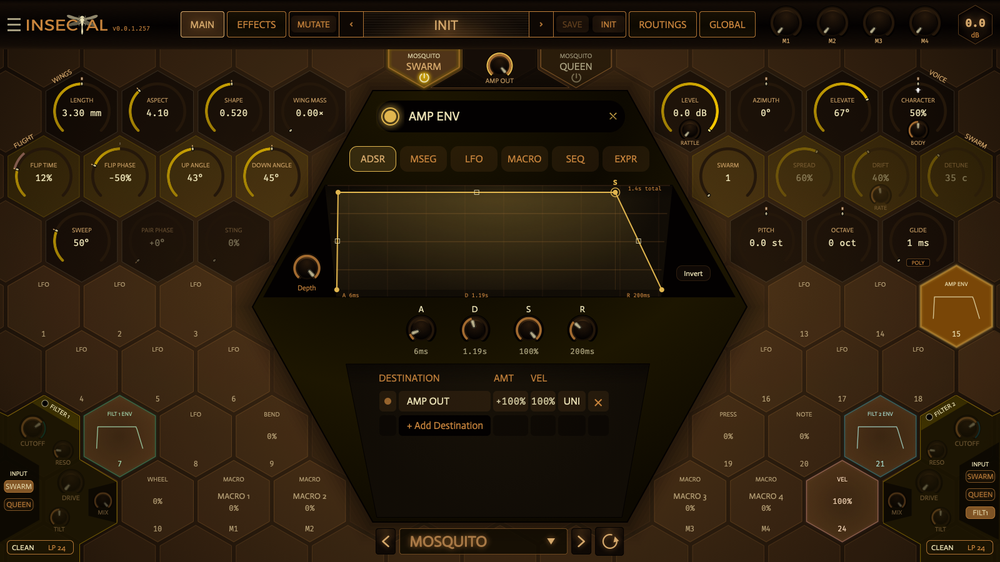
| Part | What it does |
|---|---|
| Insect | One of ten species, from the Mosquito to the Tarantula Hawk. Each starts from measurements of its real wings and has its own resonant body. |
| SWARM and QUEEN tabs | At the top left. Choose whether the board shows the swarm or the Queen, and switch each one on or off. |
| WINGS | How the wings are built: how long, what shape, how heavy. These set the basic tone. |
| FLIGHT | How the wings move: how fast they flip over, how far they sweep, and their angle on the way up and down. These change the tone the most. |
| VOICE | The insect's own voice: its character and body, its level, pitch and glide, and where you listen from. |
| SWARM | How many insects play each note, and how they spread, drift and detune. |
| AMP OUT | The dial above FILTER 2. It sets each note's volume after the filters. |
| Modulation cells | The hexagons around the editor. Each one is a source: an envelope, an LFO, a macro, a sequencer or one of your MIDI controllers. Drag one onto a dial to modulate that dial. |
The pages
| MAIN | The insect, its dials, the SWARM and QUEEN tabs, the two filters and the modulation cells. |
| EFFECTS | Ten effects that process the synth's output, with every modulation source in a strip along the bottom. |
| ROUTINGS | Every modulation routing in one list, and the MIDI CC column that sets which knob or pedal on your controller each source follows. |
| GLOBAL | Settings for the whole instrument: voices, tuning, the preset folder, preferences, window size, and the swarm's sixteen voices. |
| PRESETS | Browse, save and organize presets. Click the preset name in the header to open it. |

The header holds the ☰ menu, the page tabs, MUTATE, the preset name with its previous and next arrows, SAVE and INIT, the four macro dials M1 to M4, and the master level at the far right. Drag the master level up or down, double-click it for 0 dB, or right-click to type a value. It runs from −60 dB to +6 dB, and its edge turns red while the output clips. Presets never change it. Click the INSECTAL wordmark to see which build you have.
Hover over a control and the line under the preset name says what it does. Messages such as Undo also appear there. You can turn the descriptions off under GLOBAL › PREFERENCES.
To play Insectal, send it MIDI notes from your DAW. Tempo-synced controls follow your DAW's tempo. The sustain pedal (CC 64) holds notes after you let go of the keys. Insectal comes as VST3 on macOS, Windows and Linux, and as AU on macOS. There is no standalone app.
Installing
| System | Where the plugin goes |
|---|---|
| macOS | Copy Insectal.vst3 to /Library/Audio/Plug-Ins/VST3/
and Insectal.component to /Library/Audio/Plug-Ins/Components/
(or the same folders under ~/Library for your user only).
Apple Silicon and Intel. |
| Windows | Copy the whole Insectal.vst3 folder to
C:\Program Files\Common Files\VST3\, or run the setup program. |
| Linux | Copy the whole Insectal.vst3 folder to ~/.vst3/.
It is built on Ubuntu 22.04 and runs on that version or newer. |
2 · Your first sound
The first time Insectal opens, a short tour highlights each part of the window and says what it is for. To run it again, choose GLOBAL › LINKS › Get Started.
- Click INIT in the header for the plain patch: the Mantis, with every effect off.
- Play and hold a note. You hear the plain wing at that pitch.
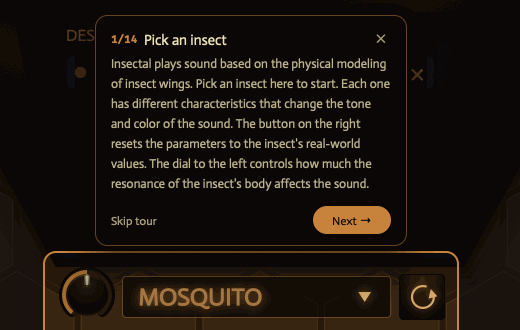
- Click the insect's name at the bottom of the board and pick another insect. The tone and the colors change with it.
- Turn DOWN ANGLE in FLIGHT. It is the main way to change the tone.
- Turn FLIP TIME. A quick flip sounds bright and buzzy; a slow one hums.
- Raise SWARM on the right to 4 or 5 for a thicker sound, then try SPREAD and DETUNE.
- Drag cell 1 (LFO) onto SWEEP and hold a note. The wings now sweep wider and narrower as the LFO moves.
When you have something you like, click MUTATE and pick a direction to hear a variation. ORIGINAL takes you back to where you started, and Undo (in the ☰ menu, or ⌘Z / Ctrl+Z) takes back one step. To add a second insect to every note, click the power icon on the QUEEN tab at the top left.
3 · The insect
The insect you choose is the starting point for every other control. Each insect has its own wing size and shape, its own way of flying, and its own resonant body, so the same dial settings sound different on each. To choose one, click the name at the bottom of the board.
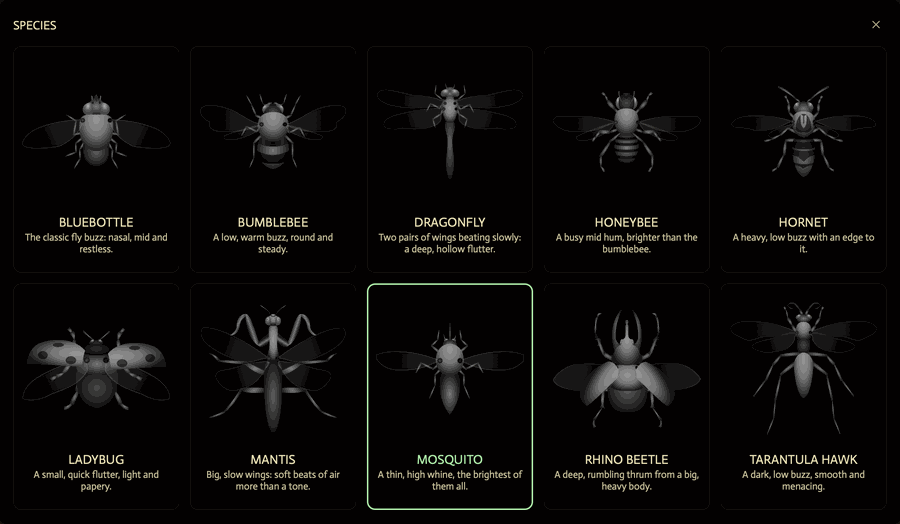
| Insect | Sound | Second pair of wings | Sting |
|---|---|---|---|
| Bluebottle | The classic fly buzz: nasal, midrange and restless. | No | No |
| Bumblebee | A low, warm buzz, round and steady. | Yes | Yes |
| Dragonfly | Two pairs of wings beating slowly: a deep, hollow flutter. | Yes | No |
| Honeybee | A busy midrange hum, brighter than the Bumblebee. | Yes | Yes |
| Hornet | A heavy, low buzz with an edge to it. | Yes | Yes |
| Ladybug | A small, quick flutter, light and papery. | No | No |
| Mantis | Big, slow wings: soft beats of air more than a tone. The INIT insect. | Yes | No |
| Mosquito | A thin, high whine, the brightest of the ten. | No | No |
| Rhino Beetle | A deep, rumbling thrum from a big, heavy body. | Yes | No |
| Tarantula Hawk | A dark, low buzz, smooth and menacing. | Yes | Yes |
The whole interface takes on the insect's colors.
Each insect's own values
Eight dials have a small notch on their ring: ASPECT, SHAPE, FLIP TIME, FLIP PHASE, UP ANGLE, DOWN ANGLE, SWEEP and PAIR PHASE. The notch marks the chosen insect's real value. Double-click one of these dials to return it to the notch. LENGTH has no notch: its range is set around the insect's own size, which sits in the middle of the dial.
Choosing another insect moves these eight dials and LENGTH to the new insect's values but keeps your changes: a dial you had turned past its notch lands the same distance past the new notch.
| Reset button | The round arrow to the right of the name. It returns these nine dials to this insect's own values. |
The swarm and the Queen
Each note can play the swarm, a single second insect called the Queen, or both. The Queen is not part of the swarm. She has her own insect, her own WINGS, FLIGHT and VOICE dials, including her own LEVEL, RATTLE, CHARACTER and BODY. She has no SWARM, SPREAD, DRIFT or DETUNE, and she uses the swarm's Wander and Jitter. In INIT she is off, and set to the Mosquito an octave down.
The SWARM and QUEEN tabs at the top left of MAIN choose whether the board shows the swarm or the Queen. Click a tab to edit it. Click the power icon on a tab to switch the swarm or the Queen on or off. The tab's label dims while it is off. With the QUEEN tab open, everything on the board is hers: the dials, the insect in the middle, the name and reset button at the bottom, and the colors. The SWARM, SPREAD, DRIFT and DETUNE dials are dimmed. Choosing an insect for the Queen works as it does for the swarm: her dials move to the new insect's values and keep your changes.
The Queen reaches a filter only when its QUEEN input button is lit (see Filters). If no filter hears her, she skips the filters.
4 · Wings and flight
The left side of the board holds the wing's build (WINGS) and its motion (FLIGHT). WINGS sets the basic tone. FLIGHT changes the tone the most. With the QUEEN tab open, these dials are the Queen's.
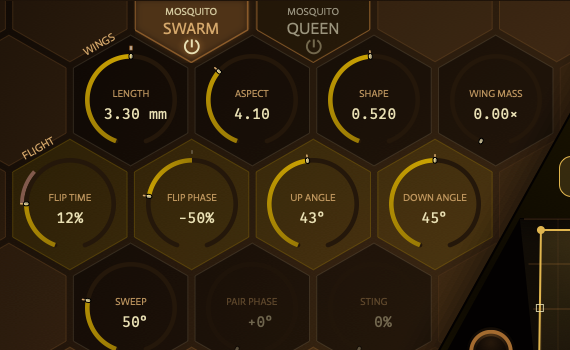
WINGS
| Control | What it does |
|---|---|
| LENGTH | How long the wings are, in mm. Longer wings sound fuller, shorter ones thinner. Its range is set around the insect's own size. |
| ASPECT | Wing shape, from short and broad (1.5) to long and narrow (9). It changes the tone strongly. |
| SHAPE | Whether the wing is widest near the body or near the tip. It changes the brightness slightly. |
| WING MASS | How heavy the wings are, 0 to 1.5x. Heavier wings thump harder at each end of the stroke. |
FLIGHT
| Control | What it does |
|---|---|
| FLIP TIME | How fast the wing flips over at each end of the stroke, as a share of one wingbeat (3% to 44%). A quick flip is bright and buzzy; a slow one hums. |
| FLIP PHASE | When the wing flips relative to its stroke, from −100% to +100%. Moves the click in each beat. |
| UP ANGLE | The wing's angle on the way up, 5° to 85°. Set it equal to DOWN ANGLE for an even stroke. |
| DOWN ANGLE | The wing's angle on the way down, 5° to 85°. The main way to change the tone. |
| SWEEP | How far the wing travels each beat, 10° to 170°. Wider is louder and richer. |
| PAIR PHASE | When the back wings beat relative to the front ones, as an offset from the insect's own timing. With the pairs half a beat apart (180°), the low tone cancels. Works only on insects with two pairs of wings. |
| STING | Makes the insect more aggressive: a sharper crack in every beat, a shiver, and a rough attack at the start of each note. Each stinging insect has its own mix of the three. Works only on insects with a stinger. |
Insect diagrams
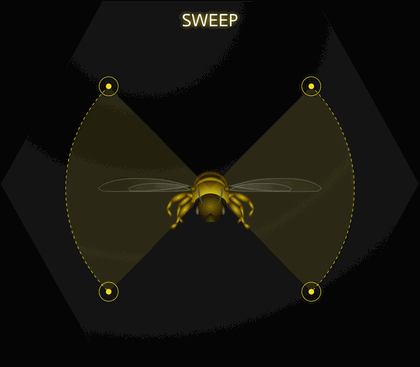
While you hold a WINGS or FLIGHT dial, or AZIMUTH, ELEVATE or RATTLE, the middle of the board shows what it does to the insect: the sweep of the wings, the angle of the stroke, where you are listening from. Turn the dial and the picture follows. Let go and it disappears. The Queen's dials show the diagram on her insect. To turn diagrams off, use GLOBAL › PREFERENCES › INSECT DIAGRAMS.
WANDER and JITTER
Two more controls have no dial on the board. You can reach them as modulation destinations (under SWARM › FLUTTER in the destination list) or as automation lanes in your DAW. The Queen uses the swarm's settings.
| Wander | Slow random drift in pitch, the way a real insect never quite holds its note. |
| Jitter | A little random loudness on every wingbeat, up to 8 dB. Roughens the sound. |
5 · Voice and swarm
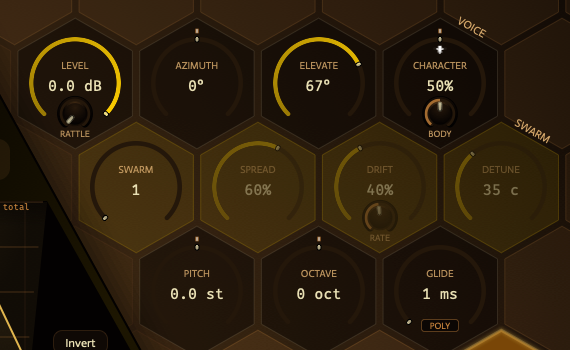
The right side of the board sets each insect's own voice, its level, pitch and listening position, and how many insects play each note. A small dial at the bottom of a cell is that cell's second control. AMP OUT sits on its own, above FILTER 2.
VOICE
| Control | What it does |
|---|---|
| LEVEL | The insect's own volume, before the filters. It starts at 0 dB. Turning it down also drives the filters less. The swarm and the Queen each have one, so you can balance them. |
| AMP OUT | The dial above FILTER 2: how loud each note is after the filters, in dB. The AMP ENV cell (MOD 15), just above it, shapes it over time, from silence up to where the dial sits. With AMP OUT all the way down there is no sound. The swarm and the Queen share it. |
| AZIMUTH | Where you stand around the insect, −180° to 180°. Pans the sound and shifts its tone a little. |
| ELEVATE | How far above the insect you listen from, 0° to 90°. Beside the insect it buzzes; from above it hums. |
| RATTLE | The small dial at the bottom of LEVEL's cell. The wings knocking against a jar at each end of the stroke. Adds a busy, dry rattle over the tone. |
| CHARACTER | The insect's own voice, at the top right with the insect's white picture on it. Each insect has its own: the mantis's bell, the hornet's snarl, the bumblebee's fuzz. At 50% you hear it as built; turn it down for less, up for more. The swarm and the Queen each have one. |
| BODY | The small dial at the bottom of CHARACTER's cell. How much of the insect's resonant body you hear: 0% is the bare wing, 100% is all body. The swarm and the Queen each have one. |
| PITCH | Moves the note up or down, ±12 semitones. Use it for vibrato and bends. |
| OCTAVE | Moves the note up or down in whole octaves, ±2. |
| GLIDE | How long the pitch takes to slide to the next note, 1 ms to 2 s. It works in every play mode. In POLY each note slides from the one played before it. |
Play mode
The small chip under GLIDE cycles through the three play modes. MODE on the GLOBAL page sets the same thing.
| POLY | Plays chords, up to the number of voices set on GLOBAL. |
| MONO | One note at a time. Each new note restarts the envelopes. |
| LEGATO | One note at a time. A note played while another is held only changes the pitch. |
SWARM
| Control | What it does |
|---|---|
| SWARM | How many insects play each note, 1 to 16. More insects sound thicker. |
| SPREAD | How widely the swarm spreads across the speakers. |
| DRIFT | How restlessly the insects move about. Adds slow movement to the sound. DRIFT does not change the pitch. With Wander up, each insect's pitch wanders on its own. |
| RATE | The small dial at the bottom of DRIFT's cell. How fast the insects roam. |
| DETUNE | How far apart the insects sit in pitch, shown in cents. More sounds thicker, like a chorus. |
SPREAD, DRIFT and DETUNE start working when SWARM is above 1, or when a modulation source is routed to SWARM. SWARM, SPREAD, DRIFT, RATE and DETUNE belong to the swarm alone, so they are dimmed while the QUEEN tab is open. To hear only the Queen, switch the swarm off with the power icon on its tab.
The sixteen swarm voices
The SWARM VOICES column on the GLOBAL page sets each insect in the swarm separately. Insect 1 plays when SWARM is 1, insects 1 and 2 when it is 2, and so on.
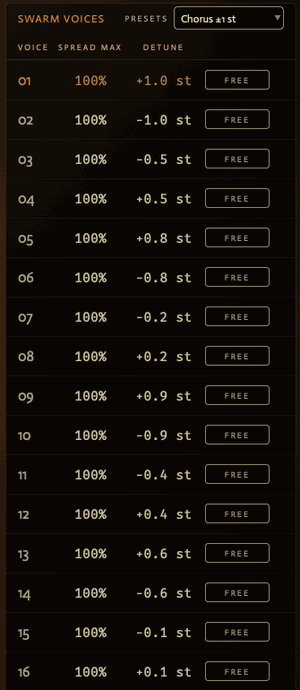
| SPREAD MAX | How far this insect may pan from the center. SPREAD scales it. |
| DETUNE | This insect's own detune, in semitones. The DETUNE dial on MAIN scales every insect's value together, so its reading in cents shows the widest detune at that setting. |
| FREE / STEP | FREE lets this insect's detune sit between semitones. STEP snaps it to whole semitones. |
| PRESETS | Writes a pattern of detunes into all sixteen: Chorus ±1 st (the default), Unison, Fine ±0.25 st, Alternating ±1 st, Chromatic fan, Fifths, Octaves, Major chord and Minor chord. Edit any value and it reads Custom. |
Drag a value to change it, or right-click to type one. The swarm voices are saved with the preset.
6 · Filters
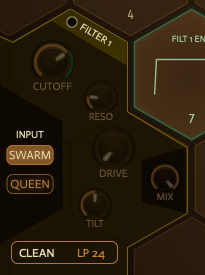
Each note has two filters, FILTER 1 in the lower left corner and FILTER 2 in the lower right. They work on each note separately, so a filter envelope starts again with every note. They come after the insect's body and before AMP OUT. Both are off in INIT, and each already has its envelope cell (FILT 1 ENV and FILT 2 ENV) routed to its cutoff.
| Control | What it does |
|---|---|
| Dot | Click the dot beside FILTER 1 or FILTER 2 to turn that filter on or off. The dials of a filter that is off still turn, so you can set it up first. |
| FRQ | The cutoff: the frequency the filter works at. On a low-pass, lower is darker. |
| RESO | Resonance: a peak at the cutoff. Turn it up for a sharper, ringing sound. |
| DRIVE | How hard the sound hits the filter, in dB. More is thicker and rougher. |
| Fourth dial | The model's own control. Its name changes with the model (see below). |
| MIX | How much of this filter you hear, dry to wet. |
| Type box | Shows the model and mode, such as CLEAN LP 24. Click it to open FILTER TYPE. |
| INPUT | The buttons down the panel's outer edge choose what the filter hears: SWARM, QUEEN, and on FILTER 2 also FILT1, the output of FILTER 1. The filter hears every source whose button is lit. A filter that is off passes what it hears on unchanged, and a sound that no filter hears skips the filters. In INIT, FILTER 1 hears SWARM and FILTER 2 hears FILT1, so the swarm runs through FILTER 1 and then FILTER 2. To run them side by side, light SWARM on both instead. |
The small dials show their value only while the pointer is over them.
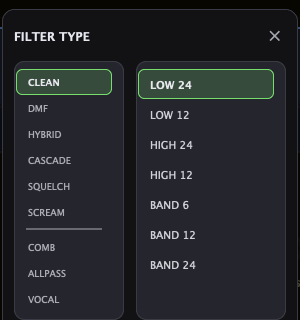
Picking a mode leaves the picker open, so you can try several. A model lists only the modes it has: Clean has all seven (Low 24, Low 12, High 24, High 12, Band 6, Band 12, Band 24); DMF, Hybrid, Cascade and Scream have all but Band 6; Squelch has Low 24 and Low 12. Comb, Allpass and Vocal have no modes. The number is the slope in dB per octave.
| Model | Sound, and its fourth dial |
|---|---|
| Clean | A neutral filter. TILT: darker to the left of center, brighter to the right. |
| DMF | A softer filter. WARMTH: how much it saturates inside its loop. Rounder and thicker as it rises. |
| Hybrid | A four-pole ladder. CHARACTER moves it from smooth to gritty. |
| Cascade | A warm four-pole ladder. COLOR: how much it saturates inside its loop. |
| Squelch | An acid-style ladder. COLOR thins the bass under the resonance as it rises. |
| Scream | A resonant filter that distorts. COLOR: how hard the resonance distorts as it rises. |
| Comb | A tuned echo with a metallic, hollow sound. DAMP: how quickly its echoes lose their highs. |
| Allpass | Phaser-like notches. SPREAD: how far apart the notches sit. |
| Vocal | Vowel sounds. SHAPE moves the vowel from A through E, I and O to U. |
FRQ, RESO, DRIVE, the fourth dial and MIX can all be modulated. HQ FILTERS on the GLOBAL page models every filter part by part, like an analog circuit, with each voice very slightly different. It uses more CPU.
7 · Modulation
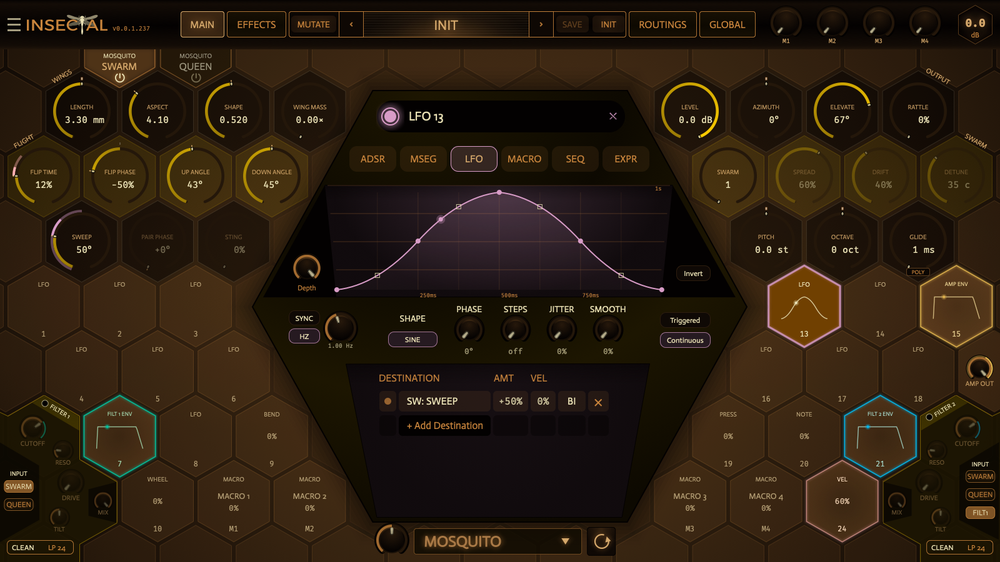
Each hexagon around the editor is a modulation source. A cell can be an envelope, an LFO, a drawn shape, a macro, a step sequencer or one of your MIDI controllers. Drag one onto almost any dial to create a routing. Click one to open it in the editor in the middle.
The cells
There are 24 cells, numbered 1 to 24. In INIT they are:
| 1 to 6, 8, 13, 14, 16 to 18 | LFOs, switched off until you route them. |
| 7 FILT 1 ENV, 21 FILT 2 ENV | Envelopes routed to each filter's cutoff. |
| 15 AMP ENV | The envelope routed to AMP OUT, just below it. It shapes the level of every note. |
| 9 BEND, 10 WHEEL | The pitch wheel and the mod wheel. The pitch wheel also bends PITCH on its own, by the PITCH BEND range on GLOBAL. |
| 19 PRESS, 20 NOTE | Aftertouch, and the note you played. |
| 24 VEL | Velocity. |
| M1 to M4 | Macros 1 to 4, the four dials in the header. Their cells are marked M1 to M4 instead of a number. |
Any cell can be switched to any type with the tabs in the editor. The names AMP ENV, FILT 1 ENV and FILT 2 ENV stay with their cells. Other cells are named by their type and number, such as LFO 1 or MSEG 4, unless you rename them.
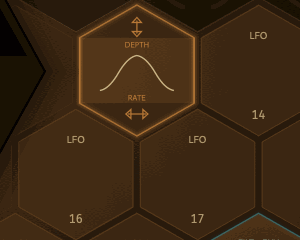
| On a cell | Action |
|---|---|
| Click | Open it in the editor. Click the open cell again to close the editor. |
| Drag from the middle | Pull out a cable. Every dial that can take it glows in the cell's color. Drop it on one to route the cell there at +50%. |
| Drag the top | Set its DEPTH. Up or right is more, down or left is less. |
| Drag the bottom | Set its RATE, or its length for an envelope, the same way. A macro, expression or sequencer cell has nothing there: its bottom works like the middle. Hold Shift for finer steps. |
| Right-click | Copy, Paste, Turn on or Turn off, and Reset. Copy takes the settings and shape, not the routings or the name. Reset returns the cell to its INIT settings. |
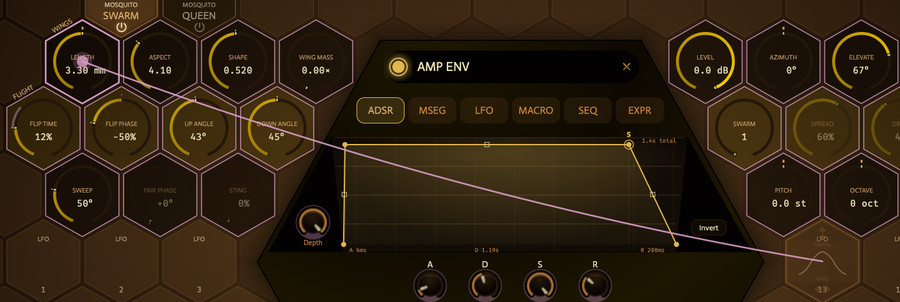
A cell can feed up to six destinations. Dropping a cable on a dial the cell already moves keeps the routing you have rather than adding a second one. While you hold a cable over another cell, that cell's editor opens after a moment, so you can drop onto its dials.
The editor
The editor's title is the cell's name. Click it to rename the cell (up to 18 characters). The dot beside it turns the cell on or off, and the × closes the editor. Below the title, six tabs set what the cell is: ADSR, MSEG, LFO, MACRO, SEQ and EXPR.
| Depth | On every tab. Scales all of this cell's routings at once, 0 to 100%. |
| Invert | On ADSR, MSEG and LFO. Turns the shape upside down. |
ADSR
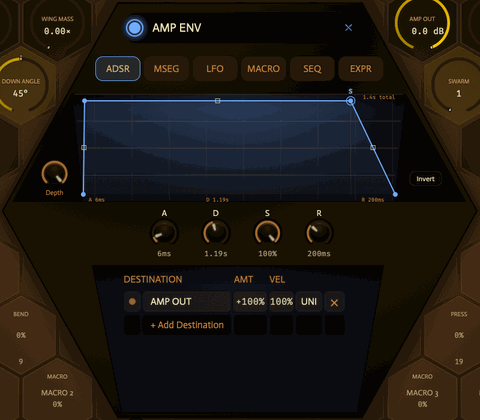
An attack, decay, sustain and release envelope. It holds at the sustain level while the key is down. A, D and R each run from 1 ms to 12 s, and S from 0 to 100%. You can also drag the points in the display: the first sets the attack, the second the decay and sustain. Drag near a line to bend it.
The A, D, S and R dials can be modulated too. Drag another cell's cable onto one, or pick it under MODS in the destination list, where it appears as, for example, MOD 15 ATTACK. Each note moves its own, so velocity routed to ATTACK gives soft and hard notes different attacks in the same chord. A release that modulation makes longer keeps the note sounding until it ends.
MSEG
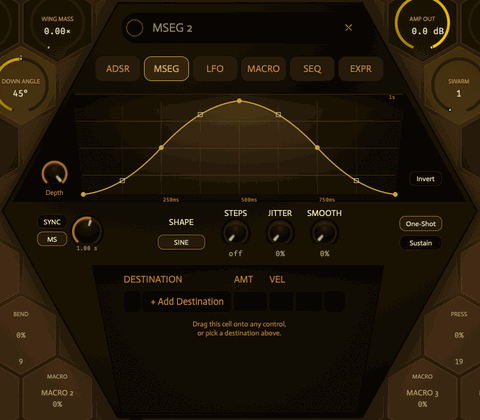
A shape you draw, played once per note.
| Length dial | How long the shape takes, 3 ms to 90 s. With SYNC it is a division of the tempo; with MS it is a time in milliseconds. |
| SHAPE | Start from a shape in the library: RAMP, SAW, TRIANGLE, SINE, SQUARE, PULSE, EXP, LOG, AD, ADSR or RANDOM. It reads DRAWN once you edit the shape. |
| STEPS | Cuts the shape into up to 32 steps. 0 is off. |
| JITTER | A random offset, new for each note. |
| SMOOTH | Rounds off sudden jumps. |
| One-Shot | Plays once from the start of every note. |
| Sustain | Holds at the S point while the key is down, then plays the rest when you let go. Right-click a point to make it the S point. |
LFO
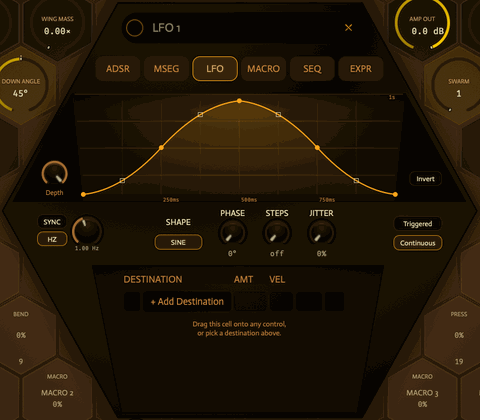
| Rate dial | With HZ, from one cycle every 90 seconds up to about 330 Hz. With SYNC, a division of the tempo: 8 bar, 4 bar, 2 bar, 1 bar, 1/2, 1/4, 1/8, 1/8T, 1/16, 1/16T or 1/32. |
| SHAPE | The same library as MSEG. |
| PHASE | Where in the cycle it starts, 0° to 360°. |
| STEPS | Cuts the shape into up to 32 steps. 0 is off. |
| SMOOTH | Rounds off the steps that STEPS makes. |
| JITTER | A random offset, new each cycle. |
| Triggered | Restarts with every note. |
| Continuous | Runs on its own; notes do not restart it. When synced, it locks to your DAW's timeline during playback. |
Drawing shapes
On MSEG and LFO you can draw the shape yourself:
- Drag a point to move it. Drag near a line to bend it. Hold Shift for finer moves. Hold Option (Alt) while you drag to bend every line by the same amount.
- Hold Option and ⌘ (Alt and Ctrl) while you drag a point to snap it to the grid.
- Double-click a straight line to add a point (up to 32). Double-click a bent line to straighten it. Double-click a point to remove it.
- Hover over a point to see its time and level.
- Click a point to select it, Shift-click to add more, or drag across empty space to select several. Drag one of them to move them all. The arrow keys move the selected points, and Esc clears the selection.
- Press Delete or Backspace to remove the selected points. The two end points stay.
- Drag a point onto the one beside it to make a sudden step.
MACRO
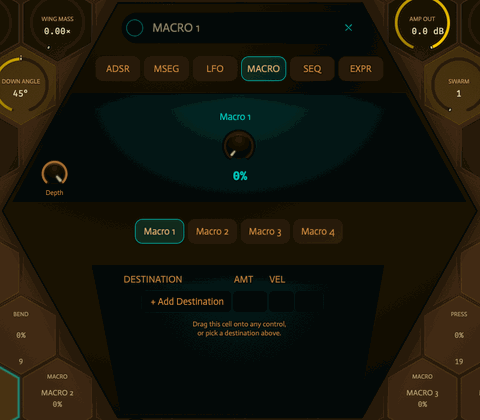
Pick Macro 1 to Macro 4, then route the cell wherever you like. The big dial here is the same as the matching header dial, M1 to M4, and your DAW can automate it. Give one macro several routings and one dial moves them all. To rename a macro, double-click or right-click its name under the header dial.
SEQ
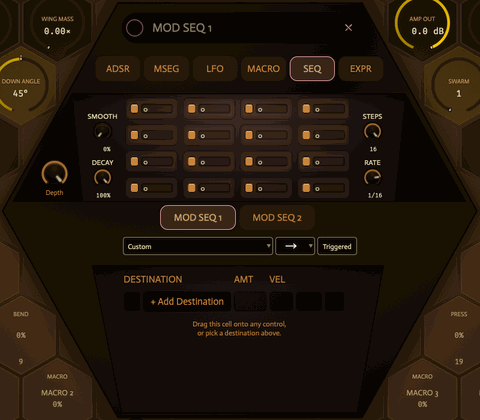
A sixteen-step sequencer. There are two, MOD SEQ 1 and MOD SEQ 2, and every cell set to one of them plays the same steps.
| Steps | Click a step to switch it on or off, or drag across steps. An unlit step holds the last level. Each step's number is its level, 0 to 100: drag it, Shift for fine, double-click for 0, right-click to type. |
| RATE | How long each step lasts, as a division of the tempo: 8 bars to 1/32. |
| STEPS | How many steps play before the sequence repeats, 1 to 16. |
| SMOOTH | How long the level takes to reach each step's value. At 0 it jumps. |
| DECAY | How the level falls across each step. At 100% it holds for the whole step; lower values fall sooner. |
| Pattern box | Opens MOD PATTERNS: factory patterns and your own. + Save keeps the steps as a pattern of your own. It reads Custom once you edit the steps. |
| Order | Forward, Backward, Forward/Back, Random, Converge or Diverge. |
| Triggered / Sync | Triggered starts the sequence again at step one with every note you play, even while other keys are held. Sync runs on, locked to your DAW's playback. |
EXPR
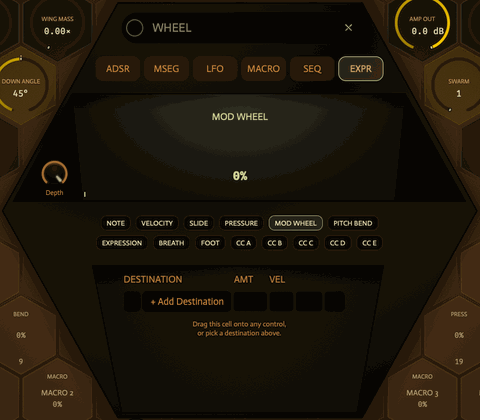
The cell follows something you play. The display shows its value as it moves.
| NOTE | The last note played, over six octaves: 0% at MIDI note 24, 100% at note 96. |
| VELOCITY | How hard you played. |
| SLIDE | CC 74, or MPE Slide. |
| PRESSURE | Aftertouch, or MPE pressure. |
| MOD WHEEL / PITCH BEND | The two wheels. |
| EXPRESSION, BREATH, FOOT, CC A to CC E | Your MIDI controller. Which CC each one listens to is set on the ROUTINGS page. |
Routings
The lower half of the editor lists where the cell goes. Each row is one routing.
| Dot | Turns the routing on or off without removing it. |
| DESTINATION | The control it moves. Click to choose another. |
| AMT | How far it moves the control, −100% to +100%. Below 0 it moves the other way. Drag, or right-click to type; double-click for 0. |
| VEL | How much velocity scales this routing. At 0%, velocity makes no difference; at 100%, a soft note gets less and a hard note gets the full amount. |
| UNI / BI | UNI moves one way from where the control sits. BI swings both ways around it. |
| × | Removes the routing. |
| + Add Destination | Opens MOD DESTINATIONS to route the cell without dragging. |
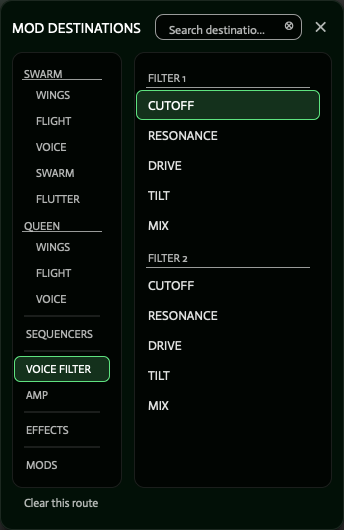
The left column has a group for each insect, SWARM and QUEEN, with WINGS, FLIGHT, VOICE and the rest under each. A routing's destination says whose it is: SW: FLIP TIME moves the swarm's, QU: LENGTH the Queen's. The list also reaches more than the board shows: Wander and Jitter under FLUTTER, the voice filters, AMP OUT under AMP, the sequencers' dials under SEQUENCERS, and the effects. Under MODS, one cell can move another cell's rate, its depth, the amount of one of its routings, or an envelope's A, D, S and R. For example, use it to fade in an LFO with an envelope. A cell cannot move itself.
On any routed dial, hold ⌘ (Ctrl on Windows and Linux) and drag to change the routing's amount; the editor opens on that cell. ⌘-right-click a routed dial for a menu that removes its routings.
Per note or shared
Envelopes, Triggered LFOs, MSEGs and velocity run per note on the controls that each note plays on its own: everything in VOICE and SWARM apart from CHARACTER, BODY and RATE, AMP OUT, PAIR PHASE and STING, Wander and Jitter, both filters, and an envelope's A, D, S and R. The Queen's controls follow the same rule. Each note starts its own copy, so a chord's notes move independently.
The other WINGS and FLIGHT dials, CHARACTER, BODY, RATE and the effects are shared by all notes. A per-note source routed there runs once for the whole instrument. In POLY it starts again only when you play after letting go of every key, and it reads the velocity of the first note.
Continuous LFOs, the sequencers, macros, the wheels, aftertouch, Slide and your controllers are always shared.
The ROUTINGS page
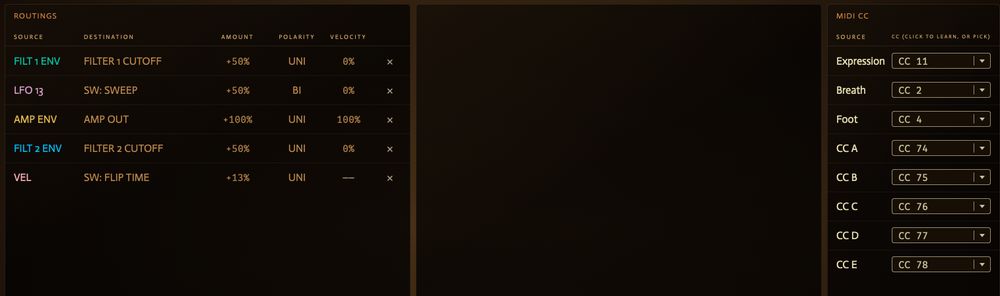
The ROUTINGS page lists every routing. Changes here also show in the editor.
| Source | The cell driving the routing. Click to move the routing to another cell. |
| Destination | The control it moves. Click to choose another. |
| Amount | Drag sideways to change it. |
| Polarity | Click to switch between UNI and BI. |
| Velocity | The same as VEL in the editor. It shows a dash when the source is velocity itself. |
| × | Removes the routing. |
A routing whose cell is off, or at zero depth, is dimmed.
MIDI CC
Eight sources come from your hardware: Expression, Breath, Foot and CC A to CC E. The MIDI CC column sets which CC each one follows. The defaults are Expression 11, Breath 2, Foot 4, CC A 74, CC B 75, CC C 76, CC D 77 and CC E 78.
- Click a CC, then move a control on your hardware to learn it. Click again to stop listening.
- Click the arrow beside it for a list: common CCs by name, then every number. None, at the bottom, leaves the source unassigned.
- Right-click to type a number.
To move a dial from your hardware, set an EXPR cell to that source and route the cell. The CC numbers belong to your setup, not to presets: they are saved with your project and become the default for new instances. With MPE on, a source set to CC 74 does nothing, because Slide uses it.
The EFFECTS strip
The EFFECTS page has every cell along the bottom, each with a live meter. Drag one onto an effect's dial to route it there.
8 · Effects
The effects process the combined sound of all notes. Its ten cards sit in two rows of five, and the sound runs through them in reading order: along the top row, then along the bottom. Every effect is off in INIT.
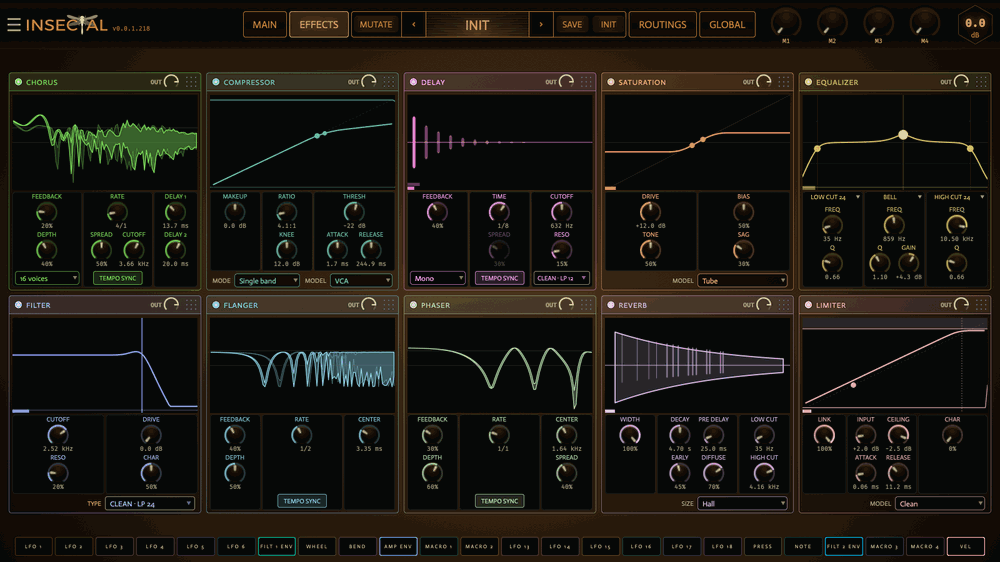
| Effect | What it does |
|---|---|
| Chorus | Thickens the sound with delayed, detuned copies: 4, 8, 16 or 32 voices. FEEDBACK, DEPTH, RATE, SPREAD, CUTOFF, DELAY 1 and DELAY 2. |
| Compressor | Evens out the level. MODE is Single band or Multiband; MODEL is VCA, FET or Opto. Single band has MAKEUP, RATIO, KNEE, THRESH, ATTACK and RELEASE. In Multiband, LOW, MID and HIGH each have THRESH and GAIN; LOW X-OVER and HIGH X-OVER set where the bands split, and TIME sets how fast all three respond. You can also drag a band's threshold in the display. |
| Delay | Mono, Stereo or Ping-pong repeats. FEEDBACK and TIME; SPREAD in Stereo and Ping-pong. A filter in the feedback path, with CUTOFF, RESO and its own TYPE, changes the repeats as they fade. |
| Saturation | Four MODEL choices: Tube, with SAG; Tape, with HYST and SPEED; Wavefolder, with FOLD; and Diode. DRIVE sets how hard the sound is pushed and TONE makes it darker or brighter. BIAS, on every model but Tape, adds asymmetry. In the destination list it is under DISTORTION. |
| Equalizer | Three bands. LOW and HIGH can each be a Cut (12, 24 or 48 dB per octave), a Shelf or a Bell. MID can be a Bell, a Notch, a Band pass or a Tilt. Click a band's name to choose its shape. Each band has FREQ, Q and GAIN; a Cut, a Notch and a Band pass have no GAIN. |
| Filter | The same nine models and modes as the voice filters, on the combined sound. CUTOFF, RESO, DRIVE and CHAR, and a TYPE box. |
| Flanger | A short, swept delay with feedback for metallic sweeps. FEEDBACK, DEPTH, RATE and CENTER. |
| Phaser | Sweeping notches for a rounder swirl. FEEDBACK, DEPTH, RATE, CENTER and SPREAD. |
| Reverb | SIZE is Room, Plate, Hall or Cave. DECAY sets the tail, PRE DELAY separates it from the sound, WIDTH sets its stereo spread, and LOW CUT and HIGH CUT shape its tone. EARLY sets the level of the first reflections and DIFFUSE smears them. |
| Limiter | Holds down peaks. INPUT drives it harder; CEILING is the highest level it lets through. ATTACK and RELEASE set how fast it reacts and recovers, CHAR how softly it rounds peaks, and LINK how much the two channels share. MODEL is Clean, Punch, Warm or Crush. It has no look-ahead. |
Effect controls
- Click the dot or the name in a card's header to turn that effect on or off. The controls of an effect that is off dim.
- Drag the nine-dot grip in a card's top right corner to move it in the chain. The order is saved with the preset.
- OUT in each header sets that effect's output level, up to +12 dB. The dot on its ring marks 0 dB. It works even when the effect is off.
- MIX, beside OUT, sets how much of the effect you hear, from dry to wet. Every card but the Equalizer has one.
- Chorus, Delay, Flanger and Phaser have a TEMPO SYNC switch. With it on, the rate dial steps through note lengths. On Chorus, Flanger and Phaser the slowest step is Stop, where the dial becomes SWEEP and sets the sweep's position.
- The TYPE box on Delay and Filter opens the same FILTER TYPE picker as the voice filters.
- Drag in a card's display to move its two main controls at once, for example DECAY and HIGH CUT on the reverb, or INPUT and CEILING on the limiter. Double-click the display to reset both.
- Drag a cell from the strip along the bottom onto a dial to modulate it.
9 · Presets and MUTATE
The preset bar sits in the middle of the header. The arrows step through the presets, the name opens the PRESETS page, and SAVE and INIT sit to its right.
| ‹ › | Load the previous or next preset in the list the PRESETS page is showing, with its folder, tag and search filters. |
| Name | Click to open PRESETS, with the name ready to type. |
| SAVE | Dim until you change something. Then click it, and the name is replaced by two choices: REPLACE writes your changes over the loaded preset, and SAVE AS opens PRESETS to save under a new name. Click SAVE again to cancel. |
| INIT | Starts from the plain patch, on any page. |
Factory presets are yours to change. Saving over one asks first: Update factory writes your changes over it, and Save to User leaves it as it was and saves your version in User.
MUTATE
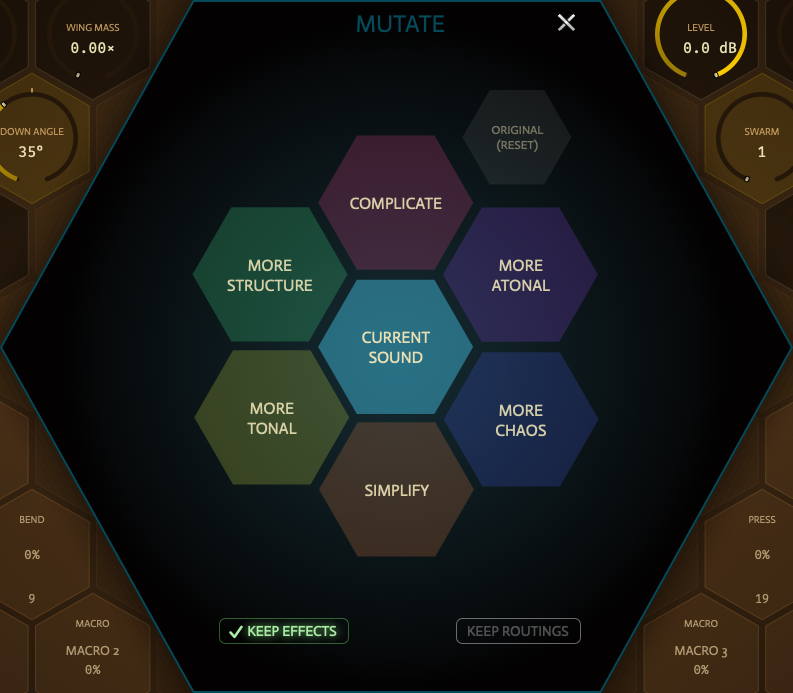
MUTATE moves the sound a step in the direction you click. The hex slides into the center and flares when the new sound is ready, and that sound is the center for the next step. Each click tries several versions, listens to each one on a held note, and keeps the one that goes furthest in that direction while staying playable.
| Complicate | More parts that work together. It may wake the Queen as another insect a consonant interval away, open the second filter on a different model with its own envelope, give the wheel or aftertouch a new job, let one movement modulate another, or switch on a chorus, delay, phaser, flanger or reverb. The swarm grows. |
| Simplify | Fewer, clearer parts. It may switch off the quieter filter, the Queen, the effect doing the least, or the faint routings, and lock the strongest movement to the beat. The swarm thins. |
| More structure | Patterns in time. Each click brings in a modulator the sound wasn't using: a step sequencer playing an accented pattern on the beat, an MSEG that steps or plucks across a bar, or a synced LFO, aimed at a filter, the wings, the body or the swarm. It may also lock movements to the beat, give an unused macro a job, set up the wheel and aftertouch, or sync the effects. |
| More chaos | Motion that does not repeat. Each click brings in a sequencer of random steps with gaps over an odd number of steps, a jagged MSEG at an odd length, or a random-stepping LFO, aimed at the sting, rattle, a resonance or a color. It may also break a movement off the beat, push a filter or the echo toward its edge, switch on an odd effect, or now and then turn the swarm into another insect. |
| More tonal | A clearer pitch. Comb and band filters become low-pass filters, the Queen moves to a consonant interval, movements get smoother, and Jitter, Wander, RATTLE, STING and DETUNE come down. |
| More atonal | Less pitch, more clang and breath. Filters become comb, allpass, vocal or band filters, the Queen moves to a dissonant interval, a fast random movement shakes the filter or the sting, and the noisy controls go up. |
| ORIGINAL | Back to the sound as it was when you opened MUTATE. |
| Keep effects | Leaves the effects as they are. Otherwise a direction may nudge their knobs and switch one on or off. |
| Keep routings | Leaves the modulation as it is, including the macros, the wheel, aftertouch and velocity. |
While the Queen is on, MUTATE changes her controls too. More tonal and More atonal can move her to another interval from the swarm, in whole semitones. While she is off, only Complicate wakes her.
MUTATE never changes PITCH, OCTAVE, LEVEL, AMP OUT, the AMP ENV cell or the master level (More chaos alone may change the swarm's insect, and its LENGTH with it), and never the Queen's LEVEL or LENGTH. Clicking a cell to edit it closes MUTATE.
The PRESETS page
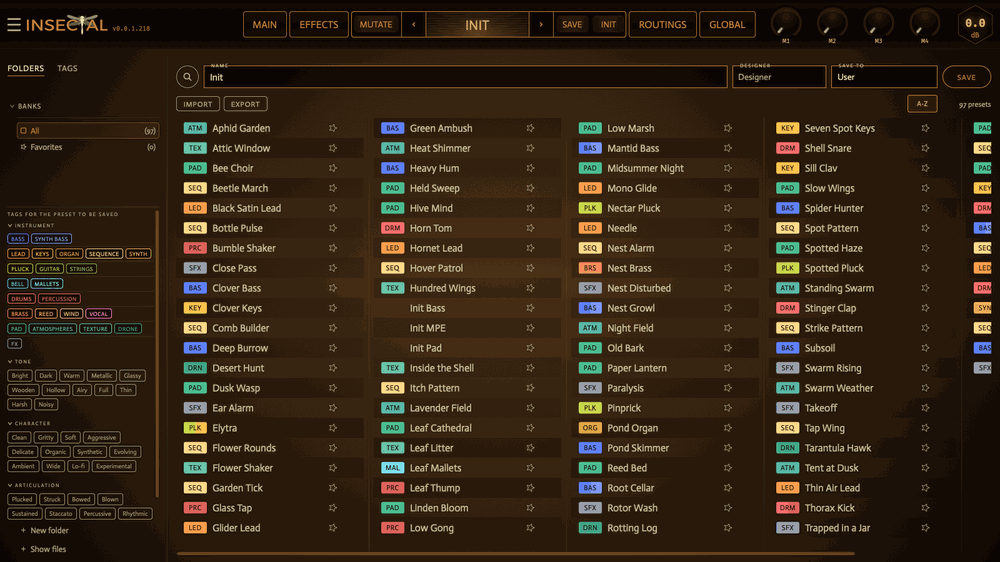
Across the top are the search box, the NAME, DESIGNER and SAVE TO fields, and SAVE. Below them, IMPORT brings in .insectal files or a .zip of them, and EXPORT writes the loaded preset to a file. A-Z flips the list's order, and the count beside it says how many presets are showing.
Insectal comes with 76 factory presets: basses, synths and keys, pads, atmospheres, sequences, drums, effects and experimental sounds, plus three starting points, Init Bass, Init MPE and Init Pad. Each factory preset names its macros and sets up the mod wheel and aftertouch to do something musical. Some also respond to Expression, Breath, Foot or Slide.
Folders, tags and favorites
- FOLDERS lists User, Factory Presets and any other folders, then All and Favorites. Click one of your folders to make it the SAVE TO folder.
- Click the star on a row to add it to Favorites. Hover over a row and click its × to delete it. Insectal asks you to confirm first.
- New folder at the bottom of the list makes a folder. You can also type a folder name into SAVE TO, or into the name field as Live Set/Opener, and save.
- Drag a row, or the NAME field, onto a folder to move the preset. Right-click a row for Move to the save folder.
- Show files opens the presets folder on your computer.
- The colored badge beside a name is its instrument tag, such as BAS for bass or PAD for pad. Hover to read all its tags.
- In FOLDERS view, the tag buttons under the folders add or remove tags on the loaded preset. In TAGS view, the same buttons filter the whole library; pick two to find presets with both. CLEAR shows everything again.
Tags and the designer name are saved in the preset file, so they travel with it. Favorites are kept on your computer.
Saving
Type a name and click SAVE on the PRESETS page, or press Return in the NAME field. Shift+Return renames the loaded preset instead. Saving over a preset asks first:
| Situation | Options |
|---|---|
| You save over the loaded preset | Replace writes over it. Save As lets you choose a new name. |
| The name is already in use | Save as copy keeps both and adds a number to yours. Replace overwrites the other one. |
To cancel, press Esc, click Cancel or click outside the box. Return picks the first choice.
Where your files live
Insectal keeps your presets, favorites, sequencer patterns, tunings, colors and settings in one folder:
| macOS | ~/Library/Application Support/JAS-I/Insectal |
| Windows | %APPDATA%\JAS-I\Insectal |
| Linux | ~/.config/JAS-I/Insectal |
Your presets are in its Presets folder. Back up this folder to keep your work safe. The ~ means your home folder. On a Mac, the path is in the Library folder inside your home folder. To open it, choose Go › Go to Folder in Finder and paste the path. On Windows, paste the path into File Explorer's address bar. On Linux, press Ctrl+H in your file manager to show hidden folders.
10 · GLOBAL, menu and window
The GLOBAL page holds the settings for the whole instrument.

| VOICES | MODE is Poly, Mono or Legato, the same as the chip under GLIDE. POLY sets how many notes can sound at once, 1 to 16. STEAL chooses which note gives way when every voice is busy: Oldest, Quietest, Lowest or Highest. Notes you have already released go first. POLY and STEAL have no effect in Mono and Legato. WIDTH sets the stereo width of everything Insectal plays, effects included; 0% is mono. Presets do not change it. PITCH BEND is the pitch wheel's range, 0 to 48 semitones each way, saved with the preset. PANIC stops every note at once. |
| OUT | A scope of what Insectal plays, with peak and RMS levels, how many voices are sounding, and a CLIP light. TIME sets how much the scope shows (double-click for 10 ms) and HEIGHT how tall the wave is drawn, x1 to x64. |
| FOLDERS | Where your presets are, how many each folder holds, REVEAL FOLDER, and REINSTALL FACTORY BANK, which writes the factory presets again. |
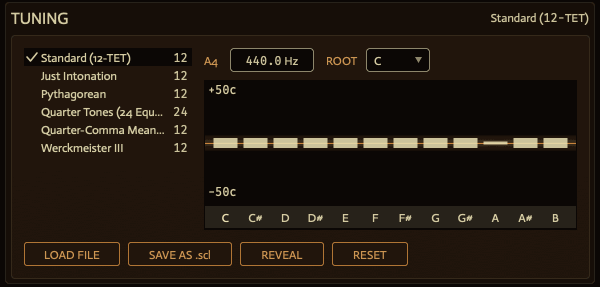
| Scale list | The scales in your tuning folder. Click one to play in it. |
| A4 | The A above middle C. Drag, or right-click to type; double-click for 440 Hz. |
| ROOT | The note the scale starts on. A4 stays where it is. |
| Note bars | Drag a note up or down to retune it, in cents. Shift for fine, Option and ⌘ (Alt and Ctrl) to snap to the nearest just interval, right-click to type cents or a ratio such as 5/4, double-click to reset it. |
| LOAD FILE | Load a scale (.scl) or a keyboard map (.kbm). |
| SAVE AS .scl | Save the scale as it plays now into the tuning folder. |
| REVEAL / RESET | Open the tuning folder, or go back to twelve equal steps, A4 at 440 Hz, root C. |
The tuning is saved with your project, not with presets. When an MTS-ESP master is running, it sets the notes; turn on USE LOCAL to play your own tuning instead.
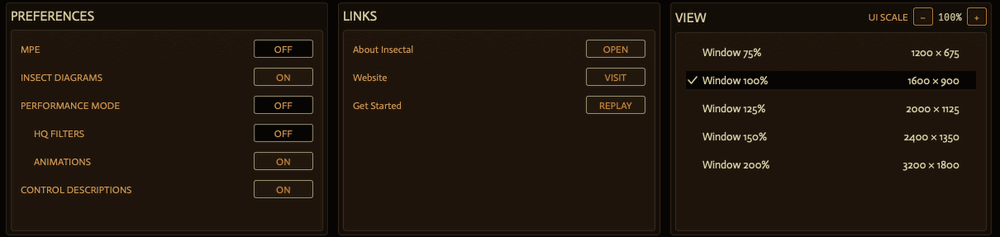
| MPE | For a controller that sends every note on its own channel. Insectal then follows the pitch bend, pressure and Slide of the newest note, plus the master channel. Set PITCH BEND to 48 for most MPE controllers. MPE is saved with your project; a preset made for MPE, such as Init MPE, turns it on. |
| INSECT DIAGRAMS | Shows what a dial does to the insect while you hold it. |
| PERFORMANCE MODE | Turns off HQ FILTERS and ANIMATIONS at once, to save CPU. Click again to bring them back. |
| HQ FILTERS | Models every filter part by part, like an analog circuit. Uses more CPU. Saved with your project. |
| ANIMATIONS | When on, the insect flaps its wings, a held dial's diagram beats, and OUT draws the sound. Turning it off saves CPU. |
| CONTROL DESCRIPTIONS | The line under the preset name says what the control under the pointer does. |
| LINKS | About Insectal, the website, and Get Started (the tour). |
| VIEW | The window size. |
The ☰ menu
| Undo / Redo | Undo or restore edits. Loading a preset, INIT and MUTATE are undo steps too, so Undo after loading a preset brings back the previous one, with its edits. |
| Panic - stop all sound | Stops every note at once. |
| Appearance... | The insect's colors (see below). |
| About Insectal | Which build you have, and what changed. |
| Website | Opens jas-i.com. |
Colors
Appearance opens a small card for the current insect: PRIMARY, SECONDARY, BASE, REVERSE, INSECT 1 to 3, and EYE 1 and EYE 2. Click a swatch to pick a color, or type its hex code. Every change shows at once and is saved on this computer, for that insect. RESET restores the insect's own colors. Drag the card to move it.
Window size
Right-click an empty part of the window, or use VIEW on the GLOBAL page, to pick a size:
| Size | Pixels |
|---|---|
| 75% | 1200 × 675 |
| 100% | 1600 × 900 |
| 125% | 2000 × 1125 |
| 150% | 2400 × 1350 |
| 200% | 3200 × 1800 |
A new window opens at the size you last chose. Each instance in your project reopens on the page you left it on.
11 · Gestures and keyboard shortcuts
| Gesture | Action |
|---|---|
| Drag | Turn a dial. Up and right both turn it up. |
| Shift-drag | Fine adjustment. |
| Mouse wheel | Turn a dial in small steps. Shift for smaller ones. |
| Double-click | Reset a dial to its default. A dial with a notch returns to the insect's own value; LENGTH returns to its middle; the master level and effect OUT return to 0 dB. |
| Right-click | Type an exact value. |
| ⌘-drag (Ctrl-drag) | On a routed dial, change the routing's amount. ⌘ with the mouse wheel does the same. |
| ⌘-right-click (Ctrl-right-click) | On a routed dial, a menu to remove its routings. |
| Drag a cell | From the middle, route it. From the top or bottom, set its depth or rate. |
Your DAW keeps the computer keyboard for notes and transport, and Insectal hands it back after every click. These keys still work inside a DAW:
| Keys | Action |
|---|---|
| ⌘Z / Ctrl+Z | Undo. |
| ⌘⇧Z / Ctrl+Shift+Z | Redo. |
| Arrow keys | Nudge the last dial you touched. In an MSEG or LFO shape, move the selected points. |
| Delete / Backspace | Remove the selected points in an MSEG or LFO shape. |
| Return / Esc | In a text field or a typed value, keep it or cancel it. In a dialog, Return picks the first choice and Esc cancels. |
| Up / Down, Return, Esc | Move, choose and close in the FILTER TYPE, MOD DESTINATIONS and MOD SOURCES pickers. |
| Esc | Close the SPECIES catalog or the About box. |
12 · If something sounds wrong
| Problem | Try this |
|---|---|
| No sound | Send a MIDI note. Check the master level in the header, AMP OUT, and that the AMP ENV cell (MOD 15) is on and routed to AMP OUT. Check that the swarm or the Queen is switched on (the power icons on their tabs) and that its LEVEL is up. If a filter is on, check its FRQ and MIX. Check the effects' OUT and MIX dials too. |
| A stuck note or runaway sound | Choose Panic - stop all sound in the ☰ menu, or PANIC on the GLOBAL page. If notes hang only while the sustain pedal is down, check the pedal. |
| A dial is dimmed | It does nothing on this insect or in this setting. Hover over it: its description says why. STING needs an insect with a stinger, PAIR PHASE one with two pairs of wings, and SPREAD, DRIFT and DETUNE need SWARM above 1. With the QUEEN tab open, SWARM, SPREAD, DRIFT and DETUNE are dimmed. |
| A cell does nothing | Check that it is on (the dot in the editor's title), that its Depth is up, and that a routing's AMT is not 0. An EXPR cell needs its controller: for Expression, Breath, Foot or CC A to CC E, check its CC on the ROUTINGS page. |
| A routing on a wing dial moves every note together | WINGS and FLIGHT, apart from PAIR PHASE and STING, are shared by all notes. For movement that differs from note to note, route to VOICE (apart from CHARACTER and BODY), SWARM or the filters. |
| A filter does nothing | Click the dot beside its name. Check its MIX, and that one of its INPUT buttons is lit for the sound you want to filter. |
| Chords bunch up or cut off | Raise POLY on the GLOBAL page, or check that the play mode under GLIDE says POLY. |
| CPU use is high | Lower SWARM or POLY. Turn off HQ FILTERS, or turn on PERFORMANCE MODE. Switch off effects you do not need. |
| I want the original factory presets back | Move or rename the Factory Presets folder. The next launch writes a fresh copy. |
| My presets are missing | Check the JAS-I folder listed under Where your files live. Your presets are in its Presets folder. |